
GUIDE FOR GAME VERSION 2.5 MOVED TO SEPARATE PAGE
TROUBLESHOOTING SECTION MOVED TO SEPARATE PAGE
- This lists commonly asked questions and issues with possible solutions.
- A list of crash log locations is also provided.
DLSS 5 SUPPORT IS NOT PROVIDED!!! While you are free to use it, I personally feel like there is little need for it when path tracing is already available. You’re better off instaling the Ultrapunk modlist instead which includes all the important visual fixes for the game.
GUIDE NOT UPDATED FOR GAME VERSION 2.5! RenoDX has been updated and is available on the RenoDX Discord.
Most game mods will be broken until the core mods get updated so if you’re not using an otherwise vanilla setup it’s recommended to stay on game version 2.31a until everything gets updated. This typically takes a few days for the core mods but mods that rely on them, if they need to be updated, could take a few weeks for the mod authors to get everything done. Some mod authors may also no longer be actively modding the game so some mods may be restricted to game version 2.31a.
Guide on how to downgrade your game to the previous version: https://wiki.redmodding.org/cyberpunk-2077-modding/for-mod-users/users-modding-cyberpunk-2077/users-downgrading-preventing-auto-updates
Only the latest game version (2.31) is officially supported. We also do not support pirated versions of the game. If you did pirate the game but decided to purchase an official version later on, then make sure to delete all pirated files. You’ll also want to start with a completely empty install folder.
The RenoDX version hosted on Nexus Mods is outdated. Please use the one hosted on GitHub https://clshortfuse.github.io/renodx/renodx-cp2077.addon64. The same addon is also available as a pinned comment in the RenoDX server within the Cyberpunk mods thread.
For questions or support feel free to ask in the RenoDX server: https://discord.gg/jz6ujVpgFB.
DISCLAIMER: The contents of this guide do not reflect the views or opinions of ShortFuse, the creator of the Cyberpunk 2077 RenoDX mod and the RenoDX framework as a whole. Any troubleshooting tips and recommended settings are based on my own personal experience from helping others with the game.
Make sure your display actually supports HDR before installing RenoDX. Your monitor should be rated for HDR400 or higher, meaning it should have at least 400 nits peak brightness.
This is not to be confused with TB400 or higher.
TB stands for True Black. True Black rated monitors will have a separate True Black mode with a more limited peak brightness, but it should result in better looking black levels and shadows. The downside to using True Black mode is a lower peak brightness, thus the highlights won’t be as bright. Both True Black and the normal modes should look fine, so try both and see which you like better.
Try checking your display manufacturer’s website for the peak brightness, or you can check the AVS forums: https://www.avsforum.com/ When in doubt try searching for the model number in your favorite search engine.
Run the Windows HDR Calibration app to figure out your display’s clipping point. In theory this should be the same as the peak brightness of your display, but it’s sometimes lower. The clipping point will act as our peak brightness within RenoDX.
What is Wrong with Cyberpunk’s HDR?
This is the answer provided directly from ShortFuse, the creator of RenoDX:
- SDR uses LUTs that clip, they don't properly roll off. But they're all baked with ACES. So they're graded, with ACES per channel coloring, and their color tuning.
- For HDR, they took the SDR LUT, and as they were stretched them to 1900 nits. If the SDR LUT went to 100 nits, then it stretched them to 1900. If the SDR LUTs went to 325 nits (clipping over 100 nits), they were also stretched to 1900 nits. So they have inconsistent stretching.
- Then, after taking their ACES-baked SDR LUTs stretched to 1900 nits, they apply their custom ACES HDR to apply a second round of ACES to try to tonemap it down to user selected peak. Except they didn't.
- First of all, a LUT that only goes to 1900 nits would never hit peak, because that's not how you're supposed to use ACES. It's supposed to be the render. They're supposed to do Render => ACES-HDR. They did Render => ACESSDR-LUT-Stretched-to-1900-nits => CustomStretchedACESHDR.
- And they still overshot user peak by about 10%. And their custom ACES would scale and stretch based on what you put. The more peak nits your put, the more it did per channel stretching, meaning overcoloring things.
- It's basically nonsense and had no metric of sanity. The original RenoDX fix I did was to at least fix the stretching from their custom ACES HDR. I redid the CP2077 mod, and the one that's in the Discord targets the SDR look, fully knowing their HDR LUT is just cooked, ITM ACES-SDR.
How to Fix Cyberpunk’s HDR using RenoDX
If you haven’t done the Windows HDR Calibration, please do so now before continuing with the guide. Full instructions can be found here: Windows HDR Calibration.
PART 1: INSTALLING RESHADE AND RENODX
0) Install Cyberpunk 2077. Make sure you’re using the latest version of the game, 2.31.
1) Download the LATEST version of ReShade WITH FULL ADD-ON SUPPORT from https://reshade.me/#download
- When running the ReShade installer, make sure to not run it directly from the Windows Downloads folder or the Cyberpunk 2077 install folder, because both options can cause issues. At the very least make a new folder in Downloads or the Desktop and place the ReShade installer there.
The latest ReShade version as of writing this guide is 6.8.0

2) Install ReShade to Cyberpunk2077.exe that is located in \bin\x64 folder (which the installer should default to once you pick Cyberpunk 2077). Click Next
- Note about mod managers: I do not recommend installing ReShade as a mod within Vortex or MO2 (Mod Organizer 2) unless you know what you’re doing.
- This guide also does not cover using Special K with ReShade, Display Commander, or using Optiscaler.
ReShade: Select Game or Application

3) For the rendering API pick DirectX 10/11/12, as the game is DirectX 12. Click Next
ReShade: Choose the Rendering API

4) The rest of the ReShade Installation will look slightly different if you already installed ReShade:
If updating ReShade:
- Select Update ReShade only
- Click Next
- Click Finish
If new ReShade installation:
- Click Skip on the effect selection screen.
- Click Skip again on the add-on selection screen.
- Click Finish
RenoDX does not require any other ReShade shaders or addons to function, as such these are not covered in the guide.
Click this link for a list of HDR compatible ReShade shaders: https://www.hdrmods.com/HDR-Link-Library#hdr-compatible-shaders
Picking unneeded addons can cause performance issues or even crashes. Addons are for specific use cases such as VR and virtual photography.
5) Grab the RenoDX addon from the RenoDX GitHub. Direct Download Link
- The version of RenoDX hosted on Nexus Mods is outdated and doesn’t work properly with the latest game version 2.31.
6) Place the RenoDX addon renodx-cp2077.addon64 in the \bin\x64 folder where Cyberpunk 2077 is installed.

IF YOU DON’T KNOW THE PEAK BRIGHTNESS OF YOUR DISPLAY PLEASE PERFORM A WINDOWS HDR CALIBRATION BEFORE CONTINUING!
- Full instructions can be found here: Windows HDR Calibration.
Clipping Point vs Peak Brightness
- Anything above this value can't be seen with the naked eye.
- Theoretically this should be the same value as the peak brightness, but that's not always the case. Some displays have a higher peak brightness with a lower clipping point.
REMEMBER: PEAK BRIGHTNESS = CLIPPING POINT
This is your peak brightness for now on when it comes to RenoDX, and any other HDR mod, shader, or application.
- After you run it once for each mode, you can then switch the HDR profile within the Windows Display settings whenever you switch to the corresponding display mode.
- This does not apply when switching from HGIG to Dynamic Tone Mapping mode. You should always calibrate in HGIG mode if your display has that capability. You would then use that same value even in Dynamic Tone Mapping mode.
HDR10 PQ vs HDR10 scRGB
HDR10 PQ is more compatible with ReShade shaders and it supports Frame Generation.
HDR10 SCRGB has slightly better visual quality but does not support DLSS Frame Generation. FSR FG still works but is inferior to DLSS FG.
Both HDR types are compatible with RenoDX.
PART 2: IN-GAME HDR SETTINGS
7) Start the game. Open the Settings menu.
8) Go to Video > HDR settings. Make sure Cyberpunk’s HDR is turned ON. HDR10 PQ and HDR10 scRGB will both work with RenoDX.
9) Press the Z button on your keyboard or press the Right Analog Stick on your controller to access the HDR Settings.
-
Maximum Brightness: Set to the peak brightness of your display. You’ll also want to enter the same value in the
Peak Brightnesssetting within the RenoDX addon. -
Paper White: (UI Brightness) 200 or change as desired. This setting has no other effect when RenoDX is installed.
While some RenoDX mods have a dedicated UI slider, the Cyberpunk one does not. However, the actual paper white setting, in terms of what you’re probably used to with HDR settings (aka the average brightness), is called Game Brightness in the RenoDX addon.
-
Set Tone-Mapping Midpoint to 1. Tone-Mapping Midpoint is critical for the overall brightness of the game. If the game is too bright then doublecheck this setting. This is a poor attempt at an exposure slider, and shouldn’t be adjusted. Use RenoDX’s exposure slider for better results.
-
Make sure HDR10 PQ saturation is 0!!! This will cause issues with Frame Generation if changed. Just use the Saturation slider within RenoDX instead.
HDR settings

10) Within Cyberpunk’s Graphics settings, make sure Color Precision is set to High or it will result in a washed out / gray image.
Color precision setting

11) Still within Cyberpunk’s Graphics settings, highly recommend you leave film grain enabled. The film grain options within RenoDX relies on this to be enabled to work. If you don’t want to use film grain, you can always set film grain intensity to 0 within RenoDX.
- Film grain really helps with banding issues in Cyberpunk (and any game in-general).
12) Open the ReShade interface, default button is the Home key.
- If you don’t have a Home key please refer to this guide that goes over how to change it to a different key: https://www.youtube.com/watch?v=xoCdpOIRKus
PART 3: RENODX SETTINGS
- Click on the
RenoDXtab along the top of the ReShade UI. - Setting recommendations listed here assume that a PsychoV tone mapper is selected.
- If using an otherwise vanilla setup, then most of the default values should work fine.
- If you using mods like Nova City 2 along with path tracing, then the game might appear to be a bit darker, especially in the interiors. Thus the RenoDX settings may need to be adjusted to compensate for this.
OUTPUT
Peak Brightness: Set the Peak Brightness to match the results from the Windows HDR Calibration test you did earlier. This should match the value entered for the Maximum Brightness slider in the game’s HDR settings.
Game Brightness: The paper white value, also known as average brightnes. You typically want to set this between 100-300 nits. Think of this as a volume knob for brightness. You probably heard of 203 nits being the magic value that everyone should use, but in reality this varies based on personal preference, type of display used, and how bright the room is where your display is located.
SDR EOTF Emulation: also known as gamma correction. UI/Menu Only is recommended for most use cases, as having it set to On can be too dark in some situations.
- If you’re going to change this I recommend picking a dark room in the middle of the night so you can use that as a reference point.
GRADING
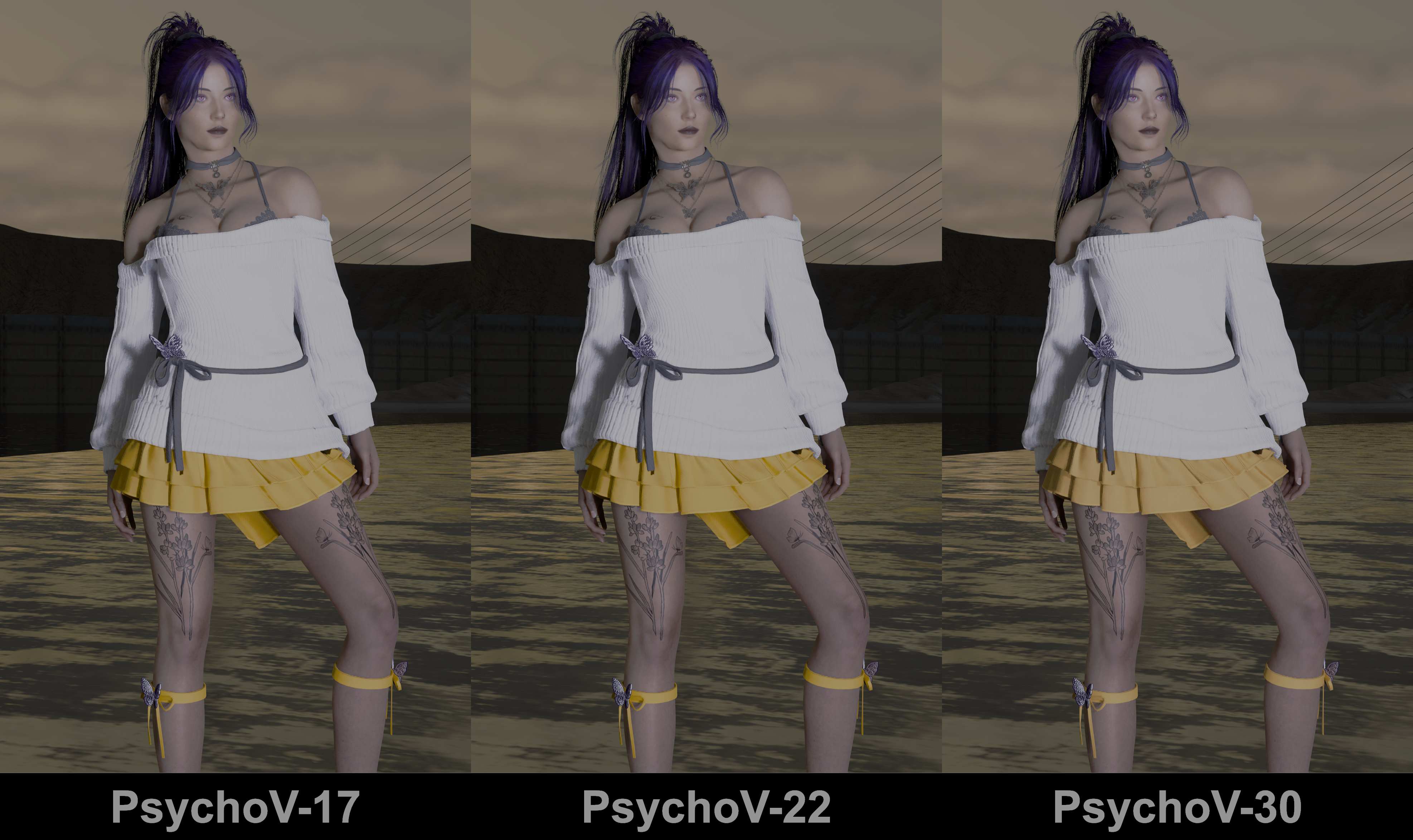
Tone Mapper: PsychoV-30 (though PsychoV-17 and PsychoV-22 will also work fine). The latest version of RenoDX has three versions of PsychoV that have minor differences but overall look pretty much the same. Skin tones (oranges / reds) will look slightly different between each version and the highlights will be a bit more impactful with PsychoV 22/30. However, any one of these will be far superior to the other available options.
- RenoDRT: older tone mapper that was present in the original version of RenoDX. Do not recommend using as any of the PsychoV tone mappers will look much better. This will appear as the furthest right option if you download it from the Nexus Mods site.
- Aces: AVOID
- Vanilla: AVOID
Exposure: 1.00. One of the major settings that affects the overall brightness / darkness of the game.
- If you’re using Nova City 2 with path tracing you might want to increase to around
1.20if the game is too dark.


Highlights: 50. Adjusts the intensity of the brightest elements on the screen.
- Can easily exceed peak brightness if increased too much. If you can’t see highlight details anymore then this may be too high.


Shadows: 50. Adjusts the intensity of the darkest elements in the game. If you can’t see details in the shadows then this may be too high.
Contrast: 50. Controls the visual difference between the brightest and darkest tones in the game.
- This setting is particularly sensitive in this game and can easily make you exceed your peak nits if pushed to an extreme setting.


Saturation: 50. Adjusts the color intensity of the game. Reduce to 0 to make the game appear to be in black and white.


Cone Response: 50. Adjusts the sensitivity of the PsychoV tonemappers. Affects both saturation and contrast.


Exposure Match: PLACEHOLDER.
Vanilla HDR Slope: PLACEHOLDER.
White Point: vanilla, but adjust to personal preference. Adjusts the color temperature. D60 is the same as 6000K which is a bit warmer, D65 is the same as 6500K which is a bit cooler.
LUT Strength: 50-60 for most LUTs, including the default / Vanilla LUTs. 100 is going to be too intense most of the time.
- I personally use Nova LUT 4 at
100, but a lot of people seem to like it better at50-60so feel free to adjust as desired even if using this LUT. The default Nova LUT 4 is equivalent to 5600K, but I prefer using the LUT Switcher color temp pack so I can change the color temperature of the LUT as needed for my screenshots. - Color temperature of a LUT is just in reference to itself. So picking a 5600K temperature LUT doesn’t mean the overall color temperature is going to be 5600K.
- Reminder: RenoDX was not designed with any LUT mod in mind.
Scene Grading Strength: PLACEHOLDER.
EFFECTS
Dynamic Exposure: Leave at 0. If this setting does anything that means the tone-mapping midpoint wasn’t set to 1.0 within the game’s HDR settings.
Bloom: 25 is a good starting point, but adjust to personal preference. Lighting effect that scatters light, controls how bright the sun is, and creates a soft glow around highlights. If your game is too bright this is one of the settings you should check.
Vignette: set to 0. Darkens the edges of the screen. People will often report the game as being too dark but its just the vignette being applied.
Film Grain Type: Perceptual. This Film grain does not affect black levels, which is a major benefit of using it. You must have film grain enabled within the game settings for this to work.
- The game’s vanilla film grain is broken unless you fix it with this mod, https://www.nexusmods.com/cyberpunk2077/mods/32899. Without the mod fix the vanilla option can cause artifacts to appear in parts of the HUD.
Film Grain Strength: 20 but set as desired This is one of the most important settings when it comes to fixing banding issues.
-
If you’re seeing lots of banding, increase the film grain intensity.
-
This is the same filmgrain from ShortFuse’s ReShade shader repository: https://github.com/clshortfuse/reshade-shaders/tree/main/Shaders
-
If using other ReShade shaders such as Lilium’s RCAS (which is commonly recommended), then I would set the filmgrain within RenoDX to 0 and then use ShortFuse’s filmgrain shader and place it at the very end (you never want to sharpen filmgrain, and RCAS is a sharpening shader).
PROCESSING
LUT Correction: PLACEHOLDER.
LUT Correction Method: PLACEHOLDER.
LUT Black Floor: PLACEHOLDER.
LUT Ceiling: PLACEHOLER.
LUT Order: vanilla. Only need to change this if using a LUT mod / LUT Switcher pack that doesn’t look right. Can adjust as needed.
Internal Sampling Encoding: PLACEHOLDER.
Internal Sampling Decoding: PLACEHOLDER.
DEBUG
DEBUG GRAPH: SET TO OFF!!!
- Found at the very bottom of RenoDX under Debug.
- Otherwise you’ll see a colored square on the upper right corner behind the minimap.
OPTIONS
Reset All: Resets all RenoDX values to their defaults.
SDR Look: PLACEHOLDER
RENODX INSTALLATION COMPLETED!
TROUBLESHOOTING SECTION MOVED TO SEPARATE PAGE
- This lists commonly asked questions and issues with possible solutions.
- A list of crash log locations is also provided.