
Instructions below assume you’re not using any other mods, including optiscaler. Please do not submit bug reports until testing with no other mods installed.
WE ARE NOT RESPONSIBLE FOR TROUBLESHOOTING YOUR MODLIST!!!
PART 1: INSTALLING RESHADE AND RENODX
0) Install Cyberpunk 2077. Make sure you’re using the latest version of the game, 2.31.
1) Download the LATEST version of ReShade WITH FULL ADD-ON SUPPORT from https://reshade.me/#download
- When running the ReShade installer, make sure to not run it directly from the Windows Downloads folder or the Cyberpunk 2077 install folder, because both options can cause issues. At the very least make a new folder in Downloads or the Desktop and place the ReShade installer there.
The latest ReShade version as of writing this guide is 6.8.0

2) Install ReShade to Cyberpunk2077.exe that is located in \bin\x64 folder (which the installer should default to once you pick Cyberpunk 2077). Click Next
- Note about mod managers: I do not recommend installing ReShade as a mod within Vortex or MO2 (Mod Organizer 2) unless you know what you’re doing.
- This guide also does not cover using Special K with ReShade, Display Commander, or using Optiscaler.
ReShade: Select Game or Application

3) For the rendering API pick DirectX 10/11/12, as the game is DirectX 12. Click Next
ReShade: Choose the Rendering API

4) The rest of the ReShade Installation will look slightly different if you already installed ReShade:
If updating ReShade:
- Select Update ReShade only
- Click Next
- Click Finish
If new ReShade installation:
- Click Skip on the effect selection screen.
- Click Skip again on the add-on selection screen.
- Click Finish
RenoDX does not require any other ReShade shaders or addons to function, as such these are not covered in the guide.
Click this link for a list of HDR compatible ReShade shaders: https://www.hdrmods.com/HDR-Link-Library#hdr-compatible-shaders
Picking unneeded addons can cause performance issues or even crashes. Addons are for specific use cases such as VR and virtual photography.
5) Grab the RenoDX addon from the RenoDX Discord server.
- The version of RenoDX hosted on Nexus Mods is outdated and doesn’t work properly with game versions 2.31 or 2.5.
Click for RenoDX server info and screenshots of the Cyberpunk 2077 addon location.
- RenoDX server invite: https://discord.gg/jz6ujVpgFB
- Direct link to the latest version of RenoDX within the Cyberpunk 2077 Discord thread: Cyberpunk 2077 RenoDX file
 Cyberpunk 2077 addon pinned in the Cyberpunk 2077 thread (will be labeled with cbv):
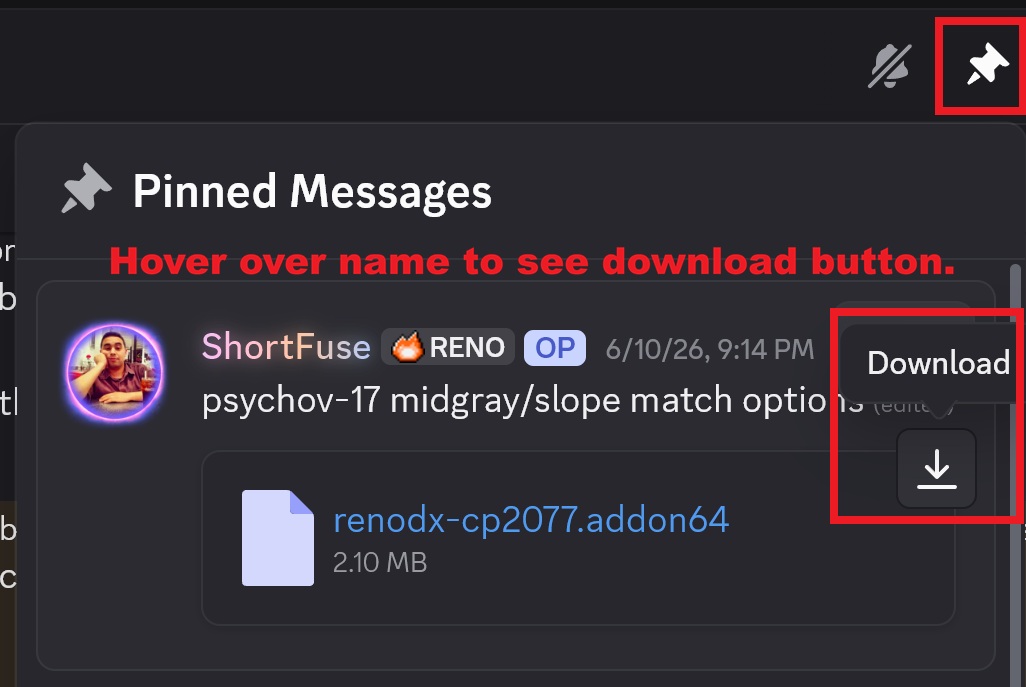
6) Place the RenoDX addon renodx-cp2077.addon64 in the \bin\x64 folder where Cyberpunk 2077 is installed.

IF YOU DON’T KNOW THE PEAK BRIGHTNESS OF YOUR DISPLAY PLEASE PERFORM A WINDOWS HDR CALIBRATION BEFORE CONTINUING!
- Full instructions can be found here: Windows HDR Calibration.
Clipping Point vs Peak Brightness
- Anything above this value can't be seen with the naked eye.
- Theoretically this should be the same value as the peak brightness, but that's not always the case. Some displays have a higher peak brightness with a lower clipping point.
REMEMBER: PEAK BRIGHTNESS = CLIPPING POINT
This is your peak brightness for now on when it comes to RenoDX, and any other HDR mod, shader, or application.
- After you run it once for each mode, you can then switch the HDR profile within the Windows Display settings whenever you switch to the corresponding display mode.
- This does not apply when switching from HGIG to Dynamic Tone Mapping mode. You should always calibrate in HGIG mode if your display has that capability. You would then use that same value even in Dynamic Tone Mapping mode.
HDR10 PQ vs HDR10 scRGB
HDR10 PQ is more compatible with ReShade shaders and it supports Frame Generation.
HDR10 SCRGB has slightly better visual quality but does not support DLSS Frame Generation. FSR FG still works but is inferior to DLSS FG.
Both HDR types are compatible with RenoDX.
PART 2: IN-GAME HDR SETTINGS
7) Start the game. Open the Settings menu.
8) Go to Video > HDR settings. Make sure Cyberpunk’s HDR is turned ON. HDR10 PQ and HDR10 scRGB will both work with RenoDX.
9) Press the Z button on your keyboard or press the Right Analog Stick on your controller to access the HDR Settings.
- Min Monitor Brightness: RenoDX tonemappers set it 0 no m so don’t worry about this.
- Maximum Brightness: Enter your display’s peak brightness here.
- Brightness: Game Brightness / Diffuse White. But CDPR math says it’s Brightness * 200 + 100. So 1.0 = 100 nits, 0.5 = 200 nits, 1.0 = 300 nits
Brightness chart supplied by Koklusz. Can view his HDR Analysis of Cyberpunk 2077, as well as lots of other games, here: https://github.com/KoKlusz/HDR-Gaming-Database/discussions/104
Game Brightness Chart
| Brightness | Nits Output |
|---|---|
| 0.0 | 25 |
| 0.1 | 35 |
| 0.2 | 50 |
| 0.3 | 75 |
| 0.4 | 100 |
| 0.5 | 130 |
| 0.6 | 170 |
| 0.7 | 225 |
| 0.75 (default) | 250 |
| 0.8 | 280 |
| 0.9 | 335 |
| 1.0 | 400 |
| 1.1 | 470 |
| 1.2 | 540 |
| 1.3 | 615 |
| 1.4 | 700 |
| 1.5 | 800 |
| 1.6 | 920 |
| 1.7 | 1070 |
| 1.8 | 1230 |
| 1.9 | 1400 |
| 2.0 | 1600 |
10) Within Cyberpunk’s Graphics settings, make sure Color Precision is set to High or it will result in a washed out / gray image.
Color precision setting

11) Still within Cyberpunk’s Graphics settings, highly recommend you leave film grain enabled. The film grain options within RenoDX relies on this to be enabled to work. If you don’t want to use film grain, you can always set film grain intensity to 0 within RenoDX.
- Film grain really helps with banding issues in Cyberpunk (and any game in-general).
12) Open the ReShade interface, default button is the Home key.
- If you don’t have a Home key please refer to this guide that goes over how to change it to a different key: https://www.youtube.com/watch?v=xoCdpOIRKus
PART 3: RENODX SETTINGS
WIP - WILL ADD LATER
Common Issues
Character Blacked Out
- Within RenoDX settings at the very bottom, change
Internal Sampling EncodingandInternal Sampling DecodingtoVanilla
Washed out / gray image
- Make sure RTXHDR is turned off globally (or at least for Cyberpunk 2077)
- Verify HDR is turn on in Windows and in Cyberpunk 2077.
- Make sure Color Precision is set to High within the graphics settings. RenoDX will not work with this set to medium.
- Make sure you’re using the latest add-on version of ReShade.
Crushed Black Levels / Shadows Appear Darker Than They Should
- Disable HDR10+ Gaming within the in-game video settings. This will only appear if your computer detects that you are using an HDR10+ capable display.
HDR10+ Setting Location

- Is the Tone-Mapping Midpoint, within the in-game HDR settings, set at something lower than 1.0?
- Some LUTs can cause this issue, especially if the RenoDX settings are not configured to compensate for it. See if the problem goes away by selecting the vanilla LUT with RenoDX at the default settings (but leave Peak Brightness the same).
- Disable any ReShade shaders if you’re using them, especially if in HDR10 scRGB mode.
- Are you using Nova City 2? This can cause the game to appear darker in some areas, especially in interior spaces and at night. This is expected behavior of the mod as it recommends using flashlight and night vision mods with it.
Colored Square Behind Minimap / Upper Right Corner
- This is the debug graph from the WIP RenoDX. Look at the very bottom of the RenoDX settings, under Debug turn off Debug Graph
Debug Graph Off
Screenshot taken from an older version of RenoDX
HUD / UI Looks Weird
- This usually appears as boxes or borders around parts of the HUD.
- The vanilla film grain is broken and can cause this issue. Make sure film grain type within RenoDX is set to
Perceptual.
HOW TO PROVIDE MORE INFO FOR TROUBLESHOOTING
- Disable all mods: With mods still in the process of being updated for 2.5, some may not work at all of having issues that need to be addressed. Even mods that were updated can still have lingering issues.
- WE ARE NOT GOING TO TROUBLESHOOT YOUR MODLIST! RenoDX is only designed to work with an otherwise vanilla game, those most mods should work fine with it.
- Make sure you are using the latest addon support version of ReShade. This can be downloaded from https://reshade.me/#download
1) Make sure view file name extensions is enabled within Windows File Viewer. This will allow you to see the commonly used file types such as .ini, .txt, .log, and .exe.
How to view file name extensions in Windows 11:
- 1) Open File Explorer.
- 2) Along the top bar of File Explorer, left click View.
- 3) Hover over Show, then make sure File name extensions is checked.
2) Take screenshots of the issue with ReShade! HDR Frame is another good alternative: https://apps.microsoft.com/detail/9p4ngn61cr4t
- The Windows snipping tool, and similar apps such as ShareX, are not capable of taking HDR screenshots at all. The most they can do is tonemap an HDR image to SDR, which is equally as useless for troubleshooting.
- Please do not take pictures of your monitor/TV with your phone unless we’re troubleshooting an issue with the display itself. This prevents us from separating the issues that are present in the game, and which are just artifacts from the phone’s camera sensor.
3) Common troubleshooting questions:
- What version of ReShade are you using?
Can be found at the very top of the ReShade About tab:

- Are you using any other ReShade shaders? (checkmarks enabled in the ReShade Home tab)?
- Is HDR turned on within Windows and in Cyberpunk 2077?
- What RenoDX settings are you using? (just take a screenshot to show this)
4) Log file locations: Unless otherwise noted, all file paths are assumed to start within the Cyberpunk 2077 game folder
- ReShade.log -
\bin\x64- By far the most important log for RenoDX issues
====OTHER MOD LOGS====
If you’re using MO2, you will find most of these logs within the overwrite folder.
- Cyberpunk 2077 Crash Dump -
%LocalAppData%\REDEngine\ReportQueuefor the main game crash log - Cyber Engine Tweaks -
\bin\x64\plugins\cyber_engine_tweaks - Redscript -
\r6\logs - Red4Ext -
\red4ext\logsand\red4ext\pluginsfor specific mod logs