For more information on how to take HDR screenshots, take a look at our HDR screenshot guide: https://www.hdrmods.com/HDR-Screenshot-Guide.
A recent Discord update broke being able to view HDR screenshots on the desktop version of Discord. There is a workaround but it technically requires you to download a 3rd party addon called Vencord (similar to Better Discord) that adds some new features to Discord.
DISCLAIMER: DISCORD MODIFICATIONS SUCH AS VENCORD AND BETTER DISCORD TECHNICALLY BREAK THE DISCORD TERMS OF SERVICE SO USE AT YOUR OWN RISK.
How to View HDR Screenshots in Discord
Applies to both SDR and HDR displays.
DESKTOP
1) Install the Vencord client modification for Discord which can be downloaded from https://vencord.dev/.
- After you install Vencord, open up the Discord and go to the Discord User Settings.
- Scroll down to the new section called
Vencord Settingsthen click onPlugins. -
Search for the plugin called
FixImagesQualitythen click the toggle to enable it.
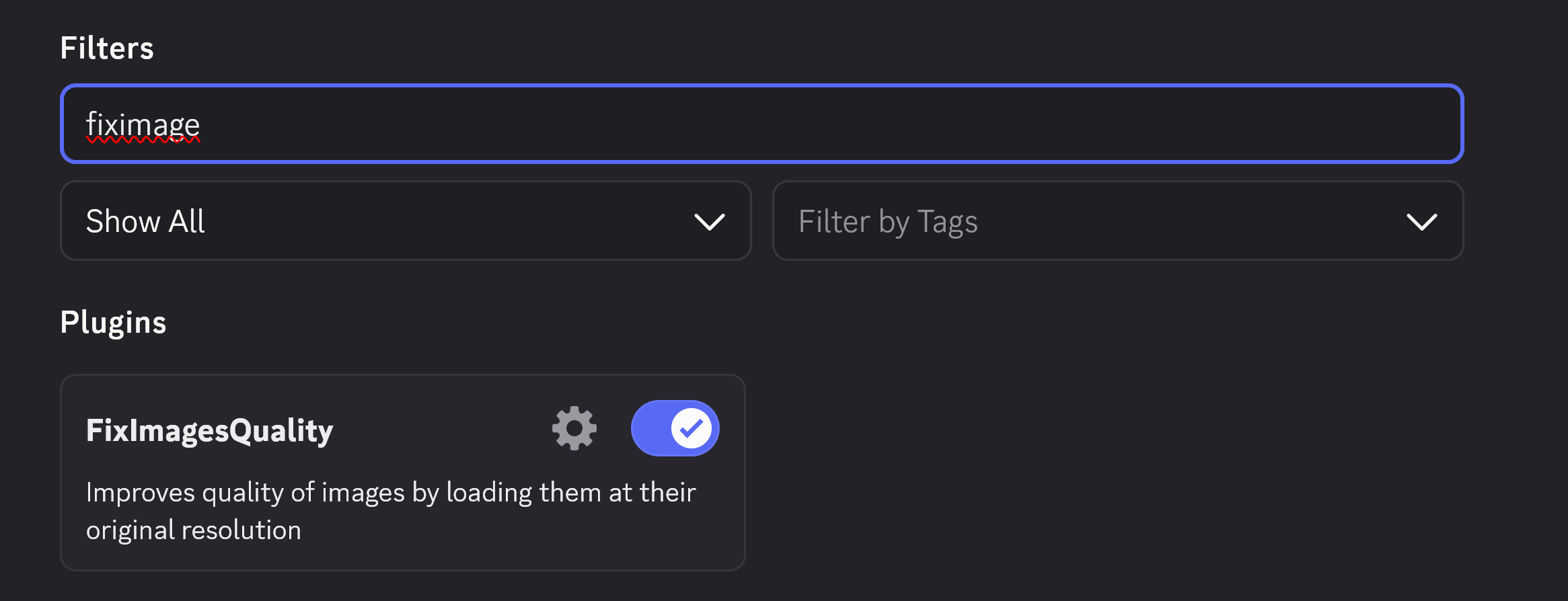
-
Click on the gear / cog wheel within
FixImagesQualityand make sureOriginal Images In Chatis enabled.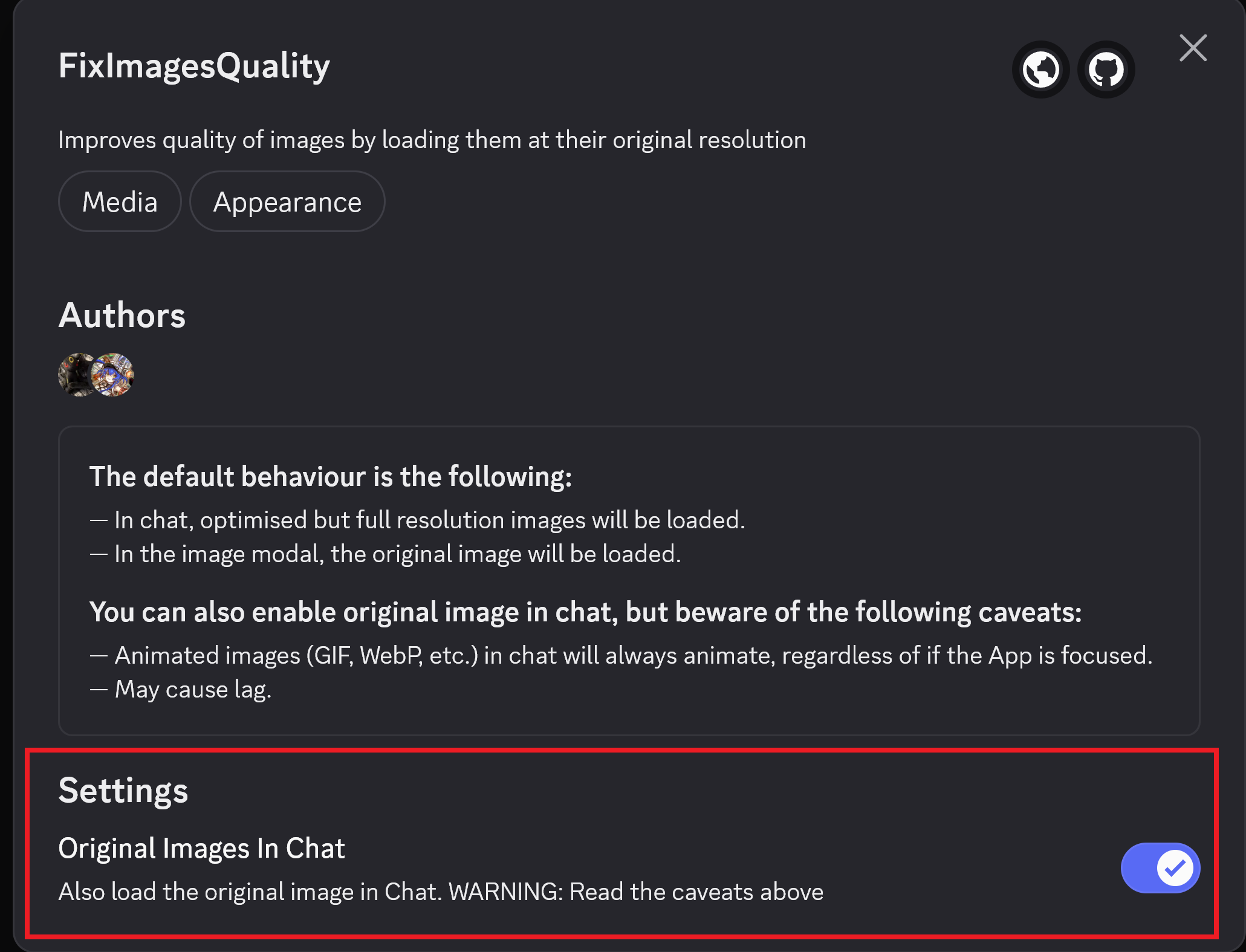
- Completely exit out of Discord. When you open Discord back up all HDR images should load.
Better Discord users: The Better Discord version is called Uncompressed Images but it basically does the same thing as the Vencord plugin.
- HDR Users: recommended to set SDR content brightness slider (Windows settings > System > Display > HDR) to 31 which is equivalent to 204 nits paperwhite. Otherwise HDR images viewed within Chromium browsers won’t look correct.
Yes, you read that correctly. Chromium uses the SDR content brightness slider for HDR paperwhite. No, it doesn’t make sense to the rest of us either.
MOBILE / SMARTPHONE
You’ll need to fully open the image to be able to see it properly because HDR image previews don’t currently work on the mobile app.
Discord Supported HDR Image Formats
HDR PNG (just use this)
This is the recommended format for Discord.
-
ReShade and Special K can take these without any additional conversion needed.
-
Will often exceed the maximum file upload size that Discord will allow with free accounts. However, servers with boost level 2 can accept file sizes up to 50MB, and servers with boost level 3 can accept file sizes up to 100MB. So unless you’re in a small private server, this usually isn’t a concern.
HDR AVIF (maybe)
AVIF is kind of broken on Discord but also kind of works.
-
Only 8-bit AVIFs load correctly and even then if you’re over a certain file size they might not still show the image preview properly. 10-bit / 12-bit AVIFs previews are broken no matter what.
-
The only solution is to fully open the images in a Chromium browser / zoom in on the screenshot to make them fully load. The upside to AVIF is that you get a smaller file size.
-
So if you don’t have Nitro AND the server also doesn’t support larger file sizes, then this may be a viable option.
-
You can use SKIV or PictureFlect Photo Viewer to convert images to AVIF.
-
HDR AVIFs taken with Steam may show as a red thumbnail within Windows, but they’ll appear correctly when opened in a compatible image viewer or Chromium web browser. Opening and resaving the AVIF with SKIV will fix the thumbnail issue.
UltraHDR JPEG (it’s complicated)
Also known as JPEG with Gain Map.
-
Works with Discord Desktop without issue and you get a smaller file size.
-
Lossy 8-bit file format, so it’s not going to look exactly like the original image; however, it’ll be close enough for the average Discord viewer.
-
Broken on Android phones, but looks good on iOS devices.
-
You can use PictureFlect Photo Viewer (free) to convert images to UltraHDR JPEG.